Screenshots


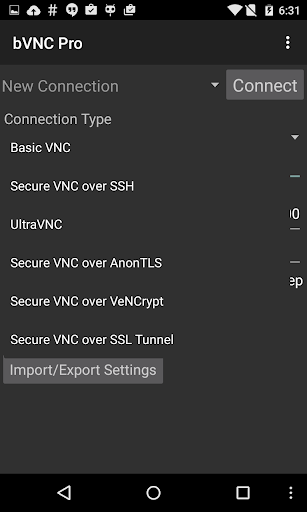
About this app
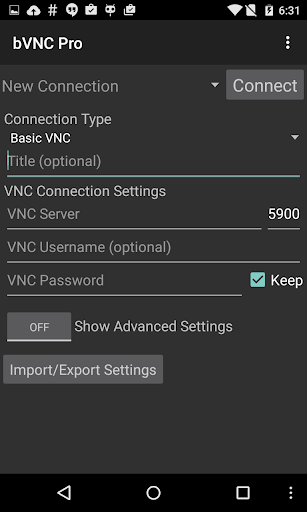
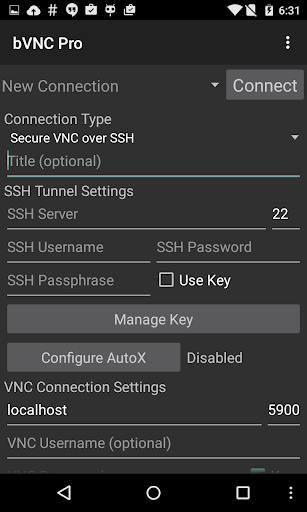
Need bVNC on iOS or Mac OS X? Now available at https://apps.apple.com/ca/app/bvnc-pro/id1506461202 Thank you for supporting my work and GPL open-source software by donating! Please also rate my application, and tell everyone about it! Release notes: https://github.com/iiordanov/remote-desktop-clients/blob/master/bVNC/CHANGELOG-bVNC Older versions: https://github.com/iiordanov/remote-desktop-clients/releases Report bugs: https://github.com/iiordanov/remote-desktop-clients/issues If you have questions, please don't post a negative review, rather, ask your question on the forum so everybody benefits: https://groups.google.com/forum/#!forum/bvnc-ardp-aspice-opaque-remote-desktop-clients Check out my RDP Client, aRDP https://play.google.com/store/apps/details?id=com.iiordanov.freeaRDP For Proxmox and oVirt, get Opaque https://play.google.com/store/apps/details?id=com.undatech.opaque bVNC is a secure, open source VNC client. Its features include: - Windows, Mac, Linux, BSD, or any other OS with a VNC server installed - Fully compatible with PiKVM - Master password support in the Pro version - Multi-factor (two-factor) SSH authentication in the Pro version - Multi-touch control over the remote mouse. One finger tap left-clicks, two-finger tap right-clicks, and three-finger tap middle-clicks - Left, right and middle button drag/drop if you don't lift the first finger that tapped - Scrolling with a two-finger drag - Pinch-zoom - Force Landscape, Immersive Mode, Keep Screen Awake - Dynamic resolution changes, allowing you to reconfigure your desktop while connected, and control over virtual machines from BIOS to OS - Full rotation - Multi-language - Full mouse support - Full desktop visibility even with soft keyboard extended - SSH tunneling, AnonTLS and VeNCrypt for secure connections (does not support RealVNC encryption). - High-grade encryption superior to RDP using SSH and VeNCrypt (x509 certificates and SSL), preventing man-in-the-middle attacks - AutoX session discovery/creation like NX client - Tight and CopyRect encodings for quick updates - Ability to reduce the color depth over slow links - Copy/paste integration - Samsung DEX, Alt-Tab, Start Button capture - Ctrl+Space capture - SSH public/private (pubkey) - Importing encrypted/unencrypted RSA keys in PEM format - Zoomable, Fit to Screen, and One to One scaling modes - Two Direct, one Simulated Touchpad, and one Single-handed input modes - In single-handed input mode, long-tap to get a choice of clicks, drag modes, scroll, and zoom - Supports most VNC servers including TightVNC, UltraVNC, TigerVNC, and RealVNC - Supports Mac OS X built-in remote desktop server (ARD) and Mac OS X authentication - Does NOT support RealVNC encryption (use VNC over SSH or VeNCrypt instead) - Stowable on-screen keys - Right-click with Back button - D-pad for arrows, rotate D-pad - Hardware/FlexT9 keyboard support - View-only mode - In-app help on usage, connection setup and input modes (see in-app Menu) - Hacker's Keyboard recommended - Windows Plain VNC with UltraVNC: http://iiordanov.blogspot.ca/2012/04/how-to-install-and-connect-to-tightvnc.html - Windows: Secure VNC with VeNCrypt: https://groups.google.com/d/msg/bvnc-ardp-aspice-opaque-remote-desktop-clients/c9ptU7UekE4/rOzNlkiaEgAJ - Windows: Secure VNC over SSH: http://iiordanov.blogspot.ca/2012/04/tunneling-vnc-over-ssh-to-windows.html - Ubuntu: Remote Desktop on 20.04 and older: http://www.howtoforge.com/configure-remote-access-to-your-ubuntu-desktop - Linux: x11vnc AutoX Secure VNC over SSH: http://iiordanov.blogspot.ca/2012/10/looking-for-nx-client-for-android-or.html - Mac OS: Remote Desktop: http://iiordanov.blogspot.ca/2012/04/how-to-connect-to-mac-os-x-using-bvnc.html - Mac OS: Secure Remote Desktop over SSH: http://iiordanov.blogspot.ca/2012/04/tunneling-vnc-over-ssh-to-mac-os-x.html Code https://github.com/iiordanov/remote-desktop-clients
What's New
Latest version v6.2.0 with bug fixes and performance improvements
Enhanced security and stability
Optimized for better user experience
Kullanıcı Yorumları
10 yorum
A Google user
6 yıl önce
Terrific app. I installed the free version first, to check it out. It works very, very well - even establishing VNC connections over a secure channel (SSH, in my case) to hosts behind a firewall is straightforward to do, once you know your way around the app. I decided to get the pay version, not necessarily because I want to get extra features or get rid of the marketing window, but because I think that the developer deserves it. Notice that migrating from the free one to the pay version is painless, thanks to the Import/Export Settings capability available in both versions. Very highly recommended.
A Google user
5 yıl önce
Highly recommended. Been using for almost 4 years to remote access Linux workstations/servers. Still the best VNC app I've found, and it's given me the ability to perform meaningful remote tasks from anywhere via my phone. Easy to set up and highly configurable - I was able to quickly set up multiple connections from private and public networks using the VNC over SSH option. Supports passwords as well as RSA keys (easy to import) for better security. Once connected you get full functionality on the remote machine. The screen can be zoomed and panned, there's full mouse functionality including left/right/middle click, and the keyboard has CRTL, ESC, arrow, etc. keys. I upgraded to the pro version in recognition of the obvious amount of work that has gone into the app. Have a problem? I found the developer very responsive via the forum.

Neil Gooding
5 yıl önce
I need to know colour depth and view only settings before I connect, not what the screenshot was. I now have to long press, then press edit to get back to where I used to be upon opening the app, then Show, to get to where I need to be. For me, the new screenshot list is an added pain. However, I appreciate the continued development to my favourite VNC app :)
Well, that is hardly something to complain about. Here is how you use the new app - you make 3 connections, and you put in the nickname what each one is for. Say you have 24bpp, rw, 24bpp, ro, and 8bpp, ro. Then, you launch the app, use the search to enter rw and you'll see the two rw connections. Type ro and you'll see the ro connection. Cheers!
Developer
Trusted developer with verified applications on our platform.
App Information
Download Stats
Safe Download
This app has been verified and is safe to download. No malware detected.
You Might Also Like
More apps from Productivity category